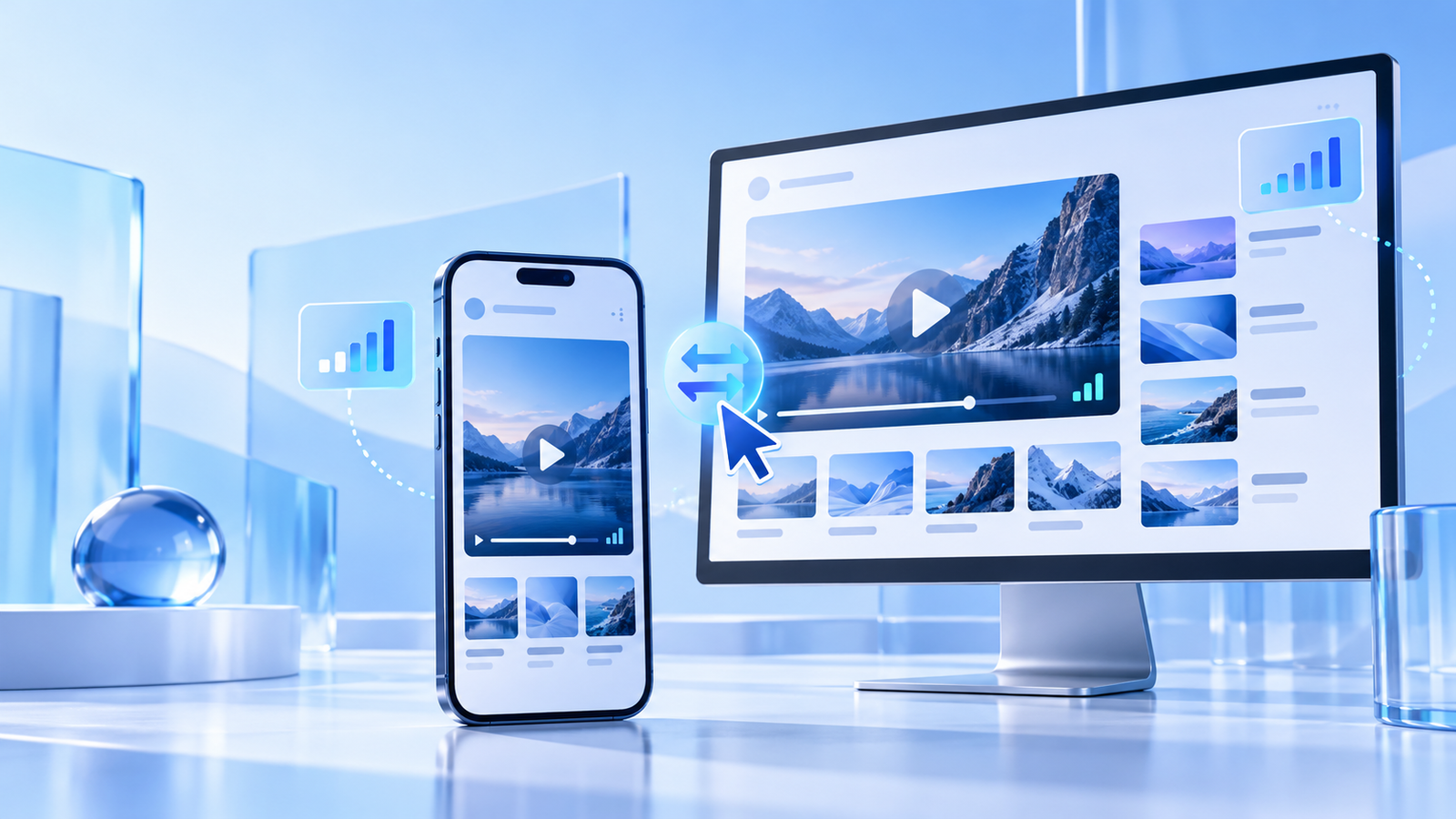
Reviewing a YouTube video on a phone and a desktop is not about chasing the largest resolution label. It is about checking whether the picture, captions and sound work for the screen, connection and task you have in mind. A clip that is perfectly clear on a small phone may reveal compression on a large monitor; a detailed desktop view may be unnecessary when you are watching a short tutorial on the move.
Use this checklist for public videos you own, have permission to use, or are reviewing through the original YouTube experience. Keep the creator and source URL with your notes. For a simple recommendation, sharing the original video link is usually preferable to creating a separate copy because it keeps the channel, captions and current description together.
Review the source before you judge the quality
Start with the individual video page. Confirm the title, creator, length and upload context. A search result, short preview or channel landing page is not the same thing as the full video. Check whether the video has captions, an important description link or an update pinned by the creator; these details may be more valuable than an extra step of picture sharpness.
For work, study or editorial research, record the URL, creator, date accessed and the exact moment you need to refer to. This makes it easier to find the source again and reduces the risk of using an outdated or similarly titled video.
Mobile and desktop quality checklist
- Watch the opening: confirm that the video begins cleanly and that the first spoken words are audible.
- Check fine detail: pause on on-screen text, diagrams, faces or product labels. Do they remain readable at a natural viewing distance?
- Listen for sync: speech should match lip movement; use headphones for a quick check of low-volume detail.
- Test captions: enable captions where available and make sure they do not cover important information.
- Compare screens: view the same 20–30 second section on your phone and desktop. Look for the differences that matter to your task.
How screen size changes the best setting
| Scenario | What to prioritise | Useful check |
|---|---|---|
| Phone while travelling | Reliable playback and readable captions | Watch a short section on the actual connection you expect to use. |
| Tablet or laptop lesson | Text clarity and sound | Pause on diagrams and listen through an explanation. |
| Large external monitor | Source detail and stable playback | Inspect fast movement and small labels at normal distance. |
| Presentation or class | Permission, audio routing and a tested source | Run the complete segment on the room’s equipment in advance. |
Quality availability can change with the original upload, current connection, browser support and the device screen. YouTube’s official quality guidance explains that playback quality is adaptive and may not be identical across devices. Use the returned or available quality as information, not as a guarantee that a particular label will be present everywhere.
When a video looks blurry, buffers or has no sound
First, rule out ordinary causes. Confirm that the internet connection is stable, close bandwidth-heavy apps, update the browser or app, and check the device audio output. A Bluetooth device can silently take over audio; a battery-saving setting can affect background playback; a small phone screen can hide detail that is obvious on a desktop.
If the issue happens only on one device, test the same timestamp elsewhere. If it happens everywhere, the source itself may have changed. Do not use unofficial workarounds to access private, deleted, region-limited or age-restricted videos. For offline viewing, use the options made available by YouTube and the rights holder for your location and account.
Keep a clean research or viewing record
A short record keeps a useful video review from becoming a pile of unnamed browser tabs. Save the video title, creator, URL, timestamp, date and a one-line note about why it matters. If you are using a creator’s material in public work, save the relevant licence or permission as well. This is clearer for collaborators and more respectful to the person who made the video.
For more guidance on public-link checks, visit the YouTube platform guide. You can also compare workflows for other services in the supported platforms directory.
Frequently asked questions
Why does the same YouTube video look sharper on one device?
Screen size, display density, connection conditions and supported playback settings can all influence how the video appears. Compare the same moment at normal viewing size before deciding that one version is “better”.
Should I watch at the highest quality available?
Choose a level that fits the screen, connection and remaining storage. More detail is helpful when it is visible and reliable; it is not always useful on a small screen or slow connection.
Can I use a public YouTube video in my own project?
Public access does not automatically grant reuse rights. Check the creator’s licence and obtain permission where needed.
Use Solution Hub
Paste a supported public link into the analyzer, review the formats detected from the source, and choose the option that fits your device. Solution Hub does not require an account for the basic link-analysis flow.
Open link analyzer ->